
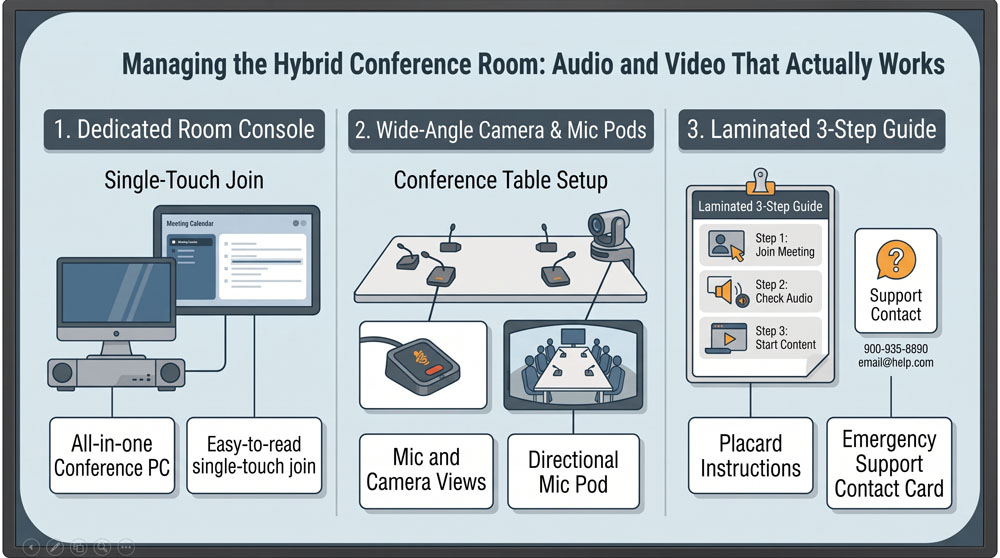
Hybrid meetings have become an everyday reality for non-profits connecting board members, remote grant officers, and on-the-ground program staff. Yet, the first fifteen minutes of nearly every hybrid meeting are still consumed by frantic troubleshooting: echoes on the microphone, cameras showing empty walls, and laptops passing around tangled dongles. Creating a reliable, easy-to-use conference room doesn’t require tens of thousands in audiovisual gear—it requires a standardized setup.
Standardize on a Dedicated Room System
The biggest source of conference room trouble is forcing staff members to plug their personal laptops into a tangle of loose cables every time they present. Every laptop has different display resolutions, audio drivers, and port layouts. Eliminate this friction by mounting an inexpensive, dedicated mini-PC permanently behind the conference room display. Pair it with a wireless keyboard and touchpad, and configure it to launch Zoom, Microsoft Teams, or Google Meet natively. Staff can join scheduled meetings with a single click.
Position Audio and Video for Equal Participation
Remote participants frequently struggle to hear conversations occurring at the far end of long tables. Built-in television speakers and laptop microphones are inadequate for group discussions. Invest in an all-in-one video bar or a centralized speakerphone pod with 360-degree beamforming microphones. Place the microphone pod centrally on the table, and mount the wide-angle camera at eye level beneath the monitor. This setup ensures that remote board members see facial expressions and hear every voice clearly.
Post a Laminated “Three-Step Start” Guide
Even the cleanest audiovisual system fails if occasional users find it intimidating. Create a clear, jargon-free three-step guide printed on a laminated placard and placed directly in the center of the conference table: 1. Turn on the TV and Mini-PC using the labeled remote. 2. Click “Join” next to your scheduled meeting on the screen. 3. Adjust room volume using the tabletop dial. Add the phone number of your operational lead or tech volunteer at the bottom for quick assistance.
0 Comments